Driving Instructor Assistant
Get set up in about 15 minutes
Everything to set up on your first day, in the order the app asks. Tap a step to see how, and tick it off as you go.
Sign in to see your own ticks: we tick what’s already done.
- Search for Driving Instructor Assistant in the App Store or Google Play. On your phone it’s called Elly.
- Sign in with the email your school has for you. We email you a 6-digit code. There’s no password.
- Elly then asks a few quick questions (steps 2 to 5). You can skip one and come back to it.
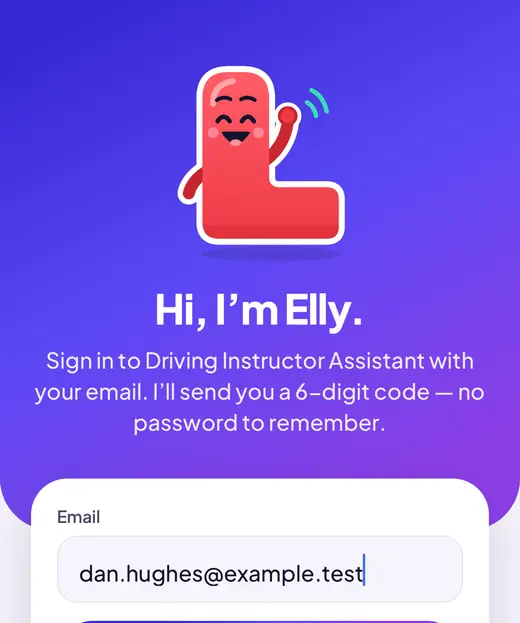
- Elly asks for these when you first sign in. To change them later: More → Settings → About you.
- Add your surname too, so pupils can tell two instructors with the same first name apart.
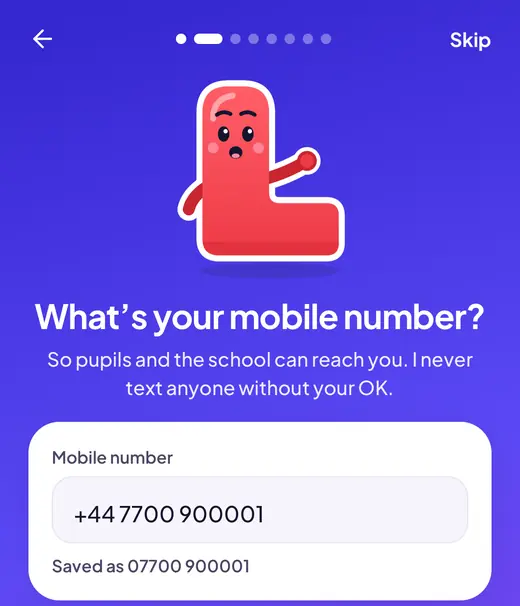
- A UK mobile starting 07. Pupils and the school use it to reach you.
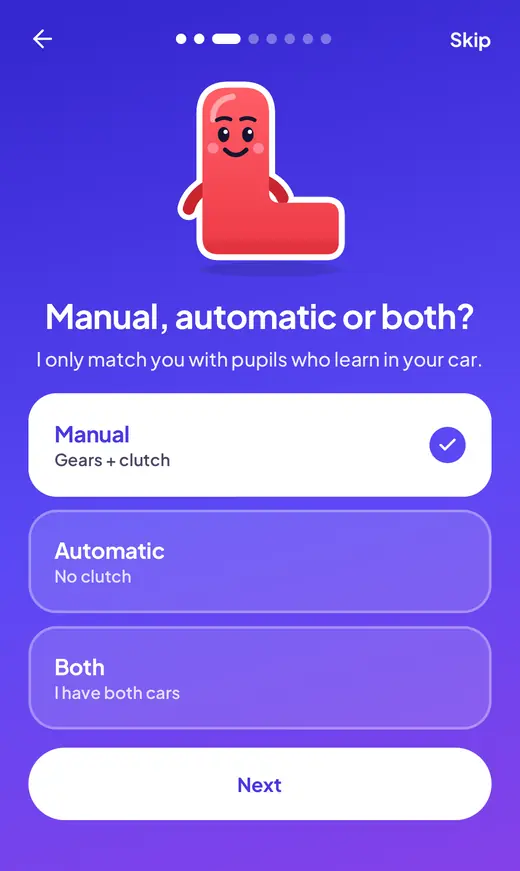
- Pick Manual, Automatic or Both if you have both cars.
- You’re only matched with pupils who learn in your kind of car.
- Change it in More → Settings → About you.
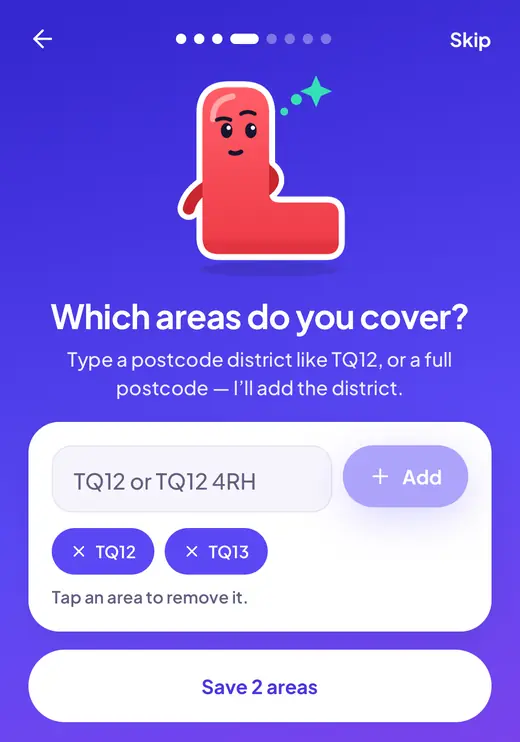
- Type a postcode district like TQ12, or a full postcode and Elly adds the district. Add every area you cover.
- This matters: pupils booking online, and new enquiries, only find you in these areas.
- Change them in More → Settings → About you. Your school can adjust them too.
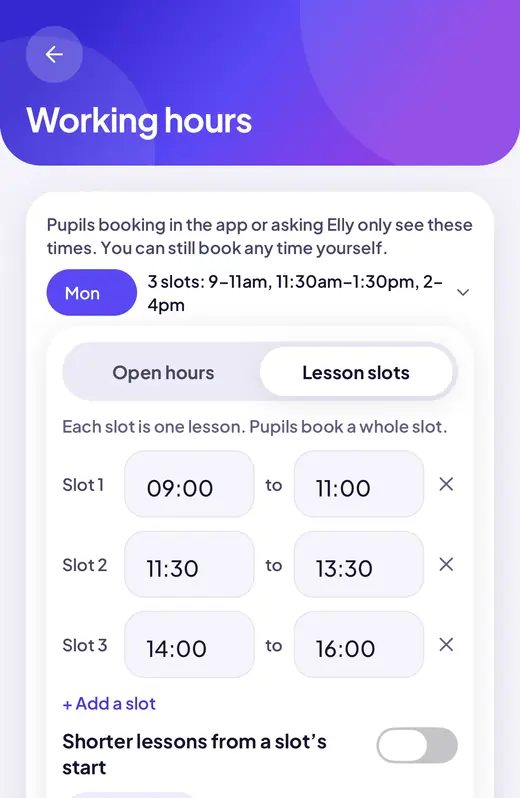
- Go to More → Settings → Working hours and tap a day.
- Open hours: pupils can start any time that fits. Add a second time for a break, like 9 to 12 and 1 to 5.
- Lesson slots: set times like 9 to 11 and 11:30 to 1:30. Build slots fills the day for you, or pick a quick start such as 2-hour slots with 30-minute breaks.
- Copy to other days or Same every weekday saves typing. You can still book any time yourself.
- Go to More → Settings → Pupil booking.
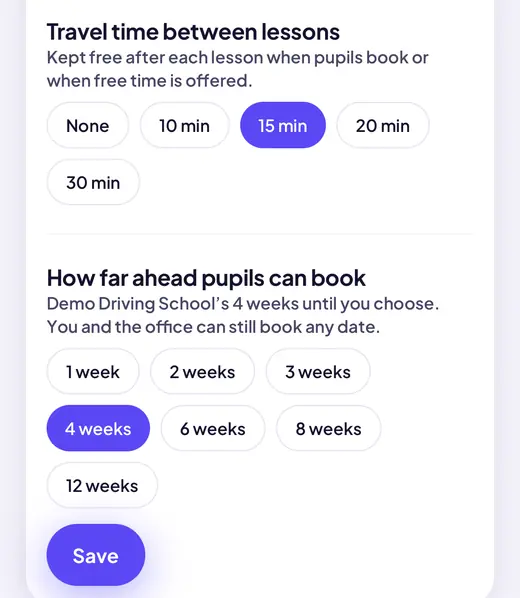
- Travel time: minutes kept free after each lesson when pupils book, from none to 30.
- How far ahead: 1 to 12 weeks. If your school sets this, the screen says so.
- Happy with how it is already? Tap Mark as done.
- Go to More → Settings → Lesson types and colours.
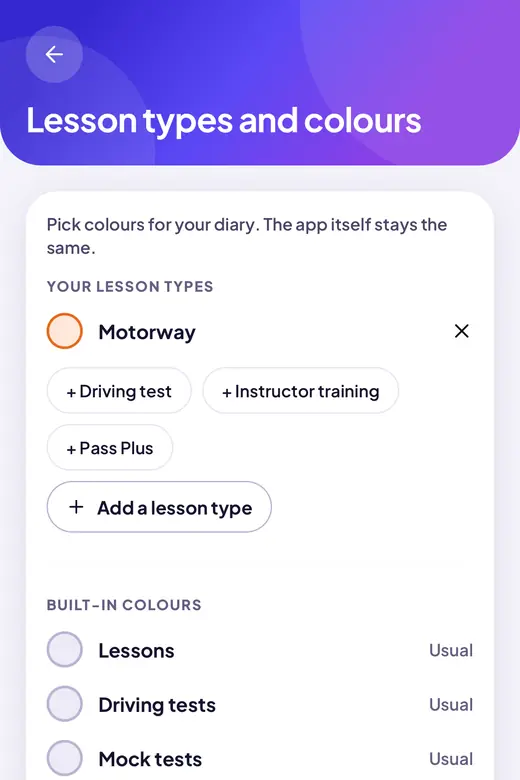
- Add your own, like Motorway or Pass Plus, and give each a colour. You can recolour lessons, tests and gaps too.
- Pick the type when you book. The diary shows it in that colour.
- Can’t see it? Update the app: it needs version 1.1 (shown at the bottom of More).
Only if you set your own prices: independent instructors, or when your school lets you.
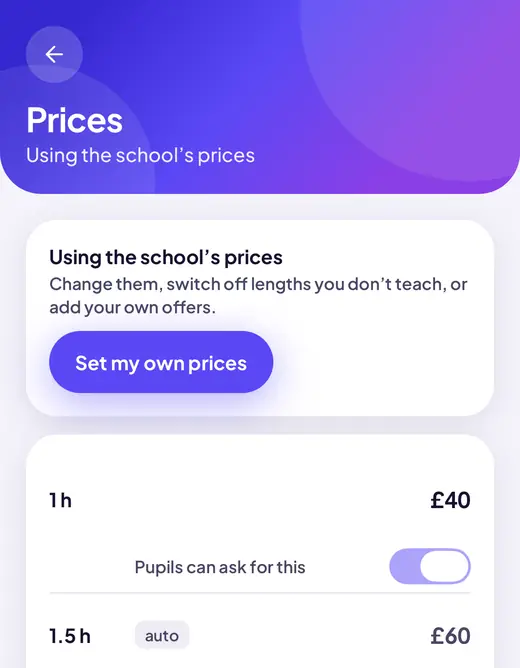
- Go to More → Settings → Prices, then tap Set my own prices.
- Type your 1-hour price. The 1½ and 2-hour prices fill in for you, and you can change any of them.
- Switch off lengths you don’t teach. Add blocks and offers, like 10 hours for £380, with an end date if you like.
- Independent? Set your lesson terms too: More → Settings → Lesson terms and cancellations.
If pupils pay you rather than the school.
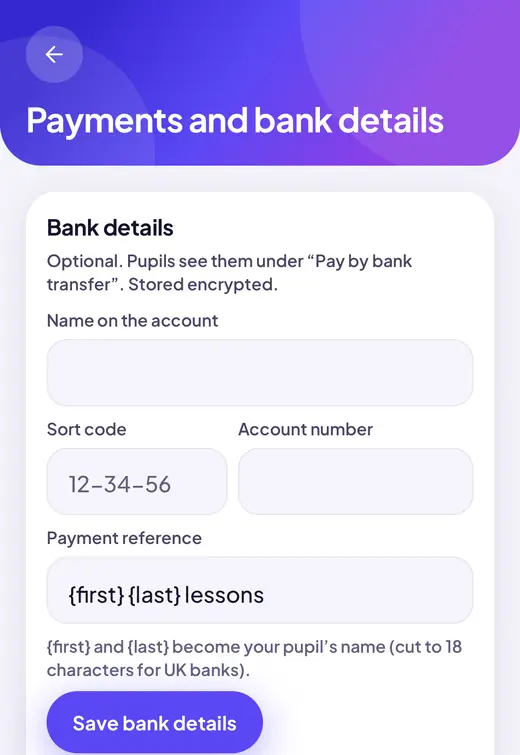
- Go to More → Settings → Payments and bank details.
- Add the name on the account, the sort code and the account number. Pupils see them under Pay by bank transfer, with a reference to use.
- They’re stored encrypted, and we email you whenever they change.
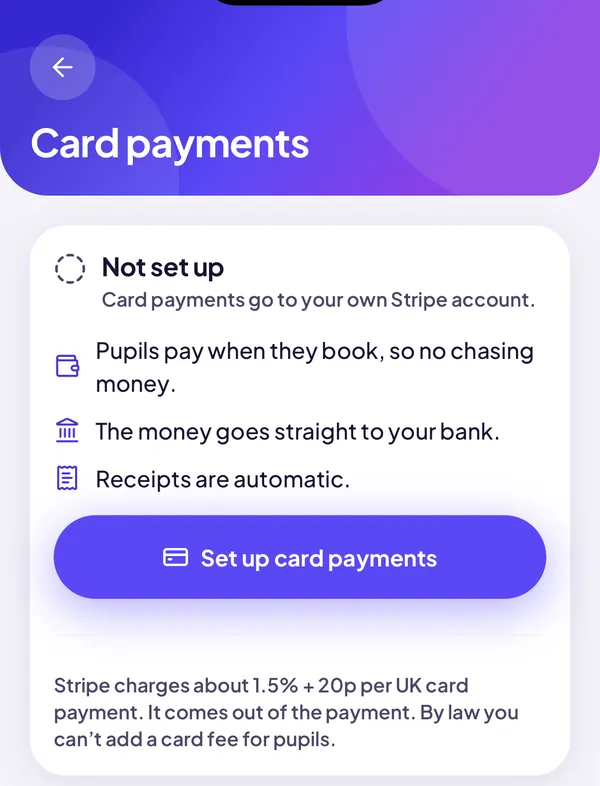
- Go to More → Settings → Card payments and tap Set up card payments. It takes about 10 minutes with Stripe.
- Follow the step-by-step card payments guide.
- If it says coming soon, card payments aren’t switched on for your school yet. Bank transfer works as now.
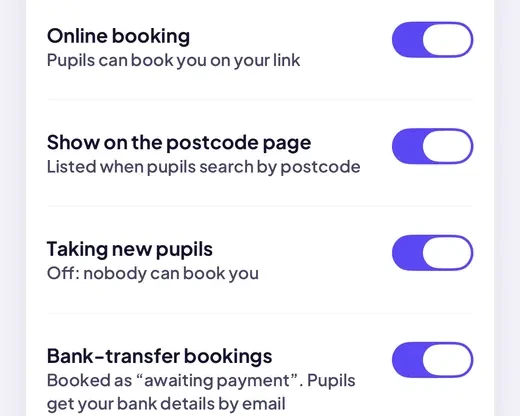
- New pupils pick one of your free times on your own booking link and book a first lesson. It’s off until it’s switched on.
- In the app: More → Settings → Online booking, in the next app update.
- On the web for now: school portal → Instructors → your name → Online booking. Your school does this for you; independent instructors do it themselves.
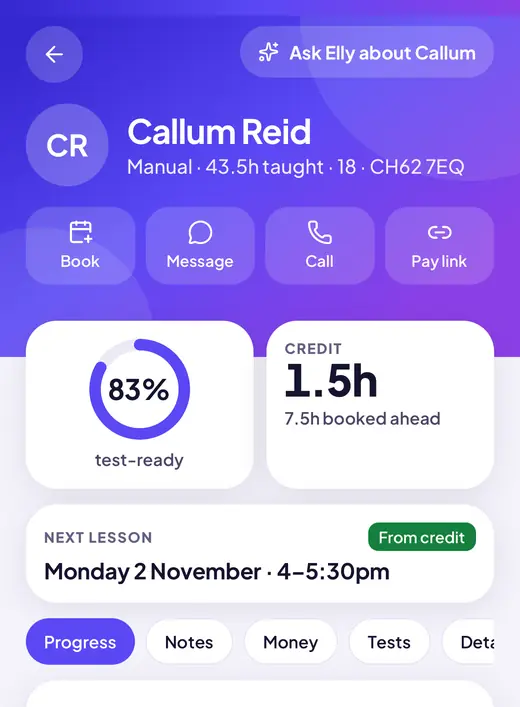
- Moved from Total Drive? Open Pupils and check a few balances (Money) and next lessons against Total Drive while you can still log in to it.
- Something wrong? Tell us with More → Send feedback and we’ll put it right.
- Invite pupils: open a pupil, then Details → Send the app invite again. Pupils you add with an email get the invite straight away.
- Tap Allow when the app asks, so you hear about lesson requests, bookings and messages.
- Said no? Turn them on in your phone’s Settings → Elly → Notifications.
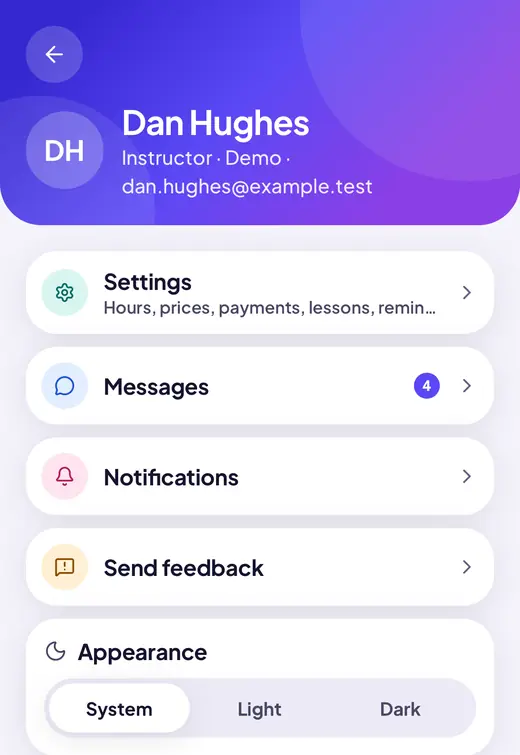
- Something not right, or an idea? Tap More → Send feedback. Every one is read.
Want the full tour? Read how the app works.
Questions? Message Phil, or use Send feedback in the app. · Sign in to the school portal